1. Add one or more PDF files
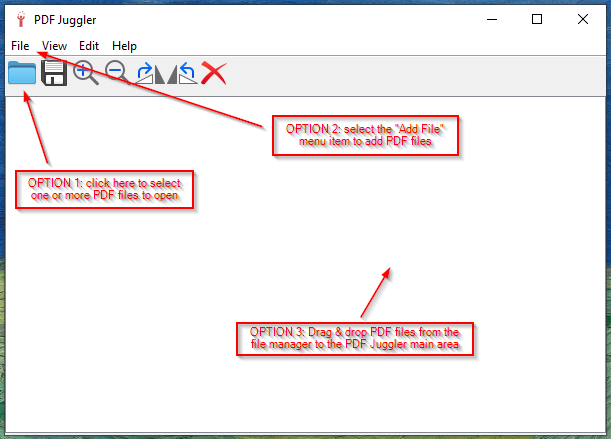
Firstly you must select one or more PDF files to work on. You may select your PDF files in three ways:
- Click the “Open” icon on the toolbar.
- Select the “Add File…” menu item from the “File” menu.
- Drag & drop your PDF files directly into PDF Juggler.
2. Reorder PDF pages
Reordering PDF files in PDF Juggler is very easy: just drag & drop your pages in the desired position.

3. Delete PDF pages
In order to remove PDF pages you must firstly select them, then you may proceed in one of the following three ways:
- Click the “Red Cross” icon on the toolbar.
- Select the “Remove Selected Pages…” menu item from the “Edit” menu.
- Press the “Delete” key on your keyboard.

4. Rotate PDF pages
To rotate PDF pages you must select them and follow one of the following options:
- Click the “Rotate” toolbar buttons.
- Select the “Rotate Clockwise” or “Rotate Counterclockwise” menu items from the “Edit” menu.

5. Save the PDF to a new file
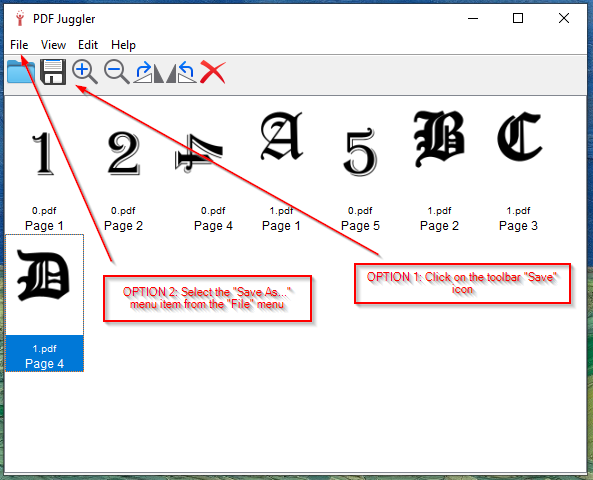
One your PDF is ready you must save it. Use one of the following options.
- Click on the “Save” toolbar icon.
- Select the “Save As…” menu item from the “File” menu.